The rapid integration of artificial intelligence into the modern workplace has shifted how professionals approach productivity, communication, and decision-making. Microsoft Copilot represents one of the most transformative developments in this space. It acts as an intelligent collaborator embedded within Microsoft 365 applications, helping professionals create, summarize, and automate at a scale previously unimaginable. Yet, the quality of results delivered by Copilot depends on one crucial skill: how effectively users design and structure their prompts.
In this guide, I will explore Copilot Prompts as both an art and a discipline. This isn’t a basic how-to for casual users. It’s an in-depth, practitioner-level exploration of the strategies, frameworks, and patterns that enable experts to harness Copilot with precision. We will dissect the technical mechanics of prompt behavior, analyze proven frameworks, and look at how enterprises can systematically build a culture of prompt fluency. By the end, you’ll have not only a theoretical understanding but also practical models to operationalize this skill in your organization.
Microsoft Copilot isn’t a single tool; it’s an AI layer embedded across Microsoft’s enterprise ecosystem. Each Copilot instance integrates differently, depending on the host application, but all are powered by the same foundation: large language models and enterprise data connectivity through Microsoft Graph. Understanding this ecosystem is the first step toward writing effective Copilot Prompts.
The Microsoft 365 Copilot suite operates across several environments. In Word, it supports drafting and summarizing documents; in Excel, it interprets data patterns; in Outlook, it composes and organizes email communication; in PowerPoint, it creates structured presentations from unformatted inputs; and in Teams, it manages information flow across conversations. Beyond the 365 ecosystem, GitHub Copilot supports developers, Dynamics 365 Copilot automates business processes, and Power Platform Copilot assists with workflow creation and app design.
Each of these variants responds differently to prompting because their context awareness, input data, and operational boundaries differ. A prompt that works well in Word will not translate effectively to Excel or Teams. This highlights the importance of understanding the system behind the surface.
At its core, Microsoft Copilot relies on Microsoft Graph, a unified data fabric that connects content across OneDrive, SharePoint, Exchange, and Teams. It builds a semantic index from this data, enabling Copilot to generate outputs grounded in enterprise knowledge. The orchestration layer then manages prompt interpretation, grounding, and the model’s response. This architecture allows Copilot to contextualize prompts with real-time data while maintaining data security through Microsoft’s compliance framework.
Prompt quality improves significantly when users understand this architecture. For instance, referencing a document stored in SharePoint within a prompt helps Copilot identify the correct context, reducing irrelevant or fabricated output. Skilled users design their prompts to align with this architecture, giving Copilot the right cues to retrieve and reason with relevant data.
What makes Copilot transformative isn’t just its intelligence but its placement directly in the flow of work. Unlike standalone chatbots, it operates within the context of the application. When used correctly, Copilot doesn’t interrupt productivity; it enhances it. Users can ask Copilot to create a meeting summary in Teams, refine a report in Word, or visualize financial data in Excel without switching platforms. This seamless integration creates both power and complexity. Effective prompting becomes the interface through which professionals navigate this ecosystem.

A Copilot Prompt is more than a question; it’s an instruction. Every word in a prompt acts as a command that defines the boundaries, purpose, and structure of the AI’s response. Professionals who treat prompting as guesswork often experience inconsistent or irrelevant outputs. Those who approach it as a structured process achieve accuracy and repeatability.
Large language models like GPT interpret prompts as directives. The model doesn’t infer unstated intent; it follows linguistic and contextual signals explicitly. If you say, “write about project management,” Copilot will deliver a generic explanation. However, when you specify, “create a 200-word explainer for new team members on agile project management in plain English with three takeaways,” you’ve given Copilot a defined task, audience, tone, and output format. This level of specificity converts an open-ended request into a controlled instruction.
Every vague prompt wastes time. Poorly written Copilot Prompts often lead to cycles of rework, editing, and clarification. Clear, structured prompts produce actionable results faster. When scaled across teams or departments, the difference in efficiency compounds dramatically. Mastering this discipline translates directly into measurable productivity gains.
Prompt design isn’t a creative mystery; it’s a trainable, repeatable skill. With practice, users begin recognizing linguistic patterns that yield consistent results. The skill lies in combining technical awareness of how Copilot accesses and interprets data with creative communication on how to instruct it clearly. Over time, professionals develop prompt literacy, an ability as fundamental to the modern workplace as spreadsheet modeling once was.
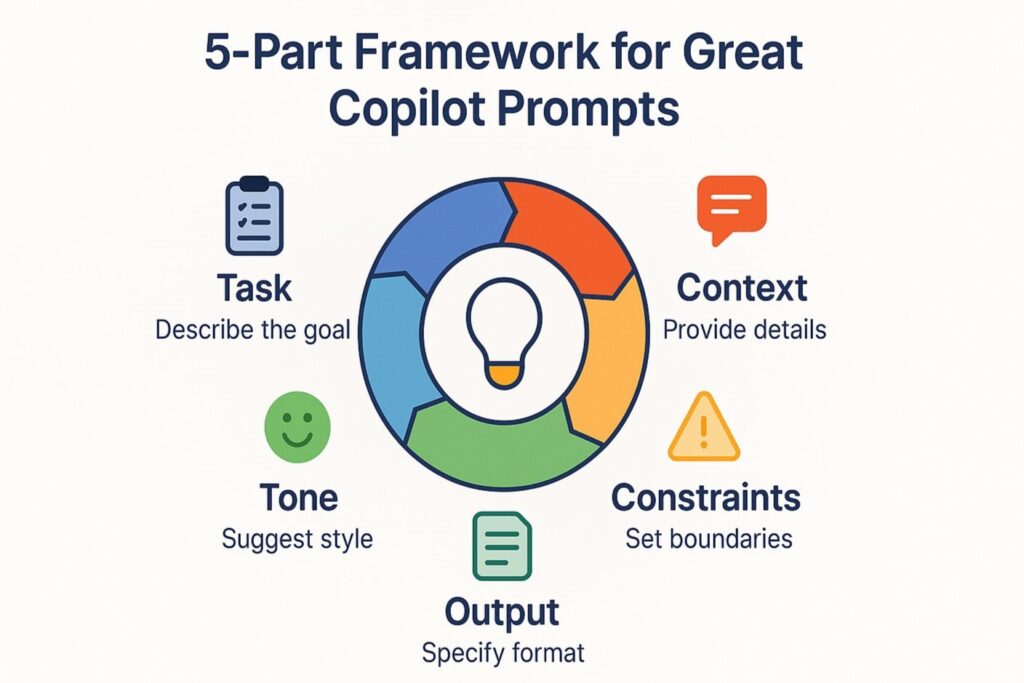
Every strong Copilot Prompt can be analyzed through five elements: Task, Context, Constraints, Tone, and Output. This framework provides a systematic approach to prompting that removes guesswork and allows predictable, repeatable results.
The task defines what you want Copilot to do. The action verb should be explicit: “summarize,” “analyze,” “generate,” “rewrite,” or “compare.” The more specific the task, the more focused the model’s output. If you want Copilot to create a report summary, specify what kind of summary, for whom, and for what purpose. Vague tasks lead to abstract or irrelevant results.
Copilot performs best when given relevant context. Context anchors the prompt to a real-world scenario, guiding the model to produce grounded, meaningful output. Effective prompts might reference a dataset, meeting, document, or audience. For example: “Summarize the attached proposal document for the leadership team, emphasizing cost and risk factors.” Here, the context directs Copilot to focus its interpretation on decision-making relevance rather than general content.
Constraints define the parameters of the output. They may include word limits, data boundaries, or stylistic requirements. Without constraints, Copilot often overproduces or meanders. Consider adding conditions like “in under 200 words,” “in a formal tone,” or “as a comparison table.” Constraints function as guardrails that prevent Copilot from diverging from the intended output.
Tone ensures that Copilot’s response aligns with audience expectations. For professional audiences, specify whether the tone should be formal, persuasive, concise, or instructive. Tone cues can dramatically shift how information is conveyed. For instance, “Write a friendly internal announcement” and “Draft a formal executive update” will produce entirely different linguistic styles.
Output defines what form you expect the response to take. It could be a bullet-point list, an email draft, a summary, or a table. Without defining the format, Copilot may deliver text in inconsistent ways. When you specify “provide the output as a table comparing features and benefits,” the model aligns structure with purpose.
Consider the difference between a weak and a strong prompt:
Weak: “Write about project management.”
Too vague. No direction, audience, or format specified. The model will guess, and the output will likely miss the mark.
Strong: “Create a 200-word explainer for new team members on agile project management. Use plain English and end with three bullet takeaways.”
This prompt clearly defines the task, audience, tone, format, and constraints. It removes ambiguity and helps the model deliver with precision.
While the 5-Part Framework defines structure, prompt patterns represent reusable linguistic templates that consistently produce reliable results. These patterns allow professionals to standardize effective communication with Copilot.
Certain prompt forms recur across successful enterprise use cases. Examples include:
Each pattern integrates elements from the framework while offering flexibility for reuse. By embedding patterns into workflows, teams can maintain quality and reduce prompt drafting time.
Different professional roles benefit from different prompt categories. Analysts rely on analytical prompts (“compare,” “correlate,” “summarize”), communicators favor transformational prompts (“rewrite,” “summarize,” “structure”), while creators use generative prompts (“draft,” “develop,” “compose”). Recognizing these categories helps users match the right prompting style to their objective.
| Use Case | Weak Prompt | Improved Prompt |
|---|---|---|
| Marketing | “Write a campaign.” | “Create a 3-part email sequence targeting financial decision-makers, focusing on cost optimization, in a confident and conversational tone.” |
| HR | “Make a welcome doc.” | “Draft a one-page onboarding guide for new remote employees. Keep the tone friendly, list key contacts, and end with three practical onboarding tips.” |
Patterns remove uncertainty from the prompting process and create a shared language across departments. When organizations adopt standardized prompt patterns, Copilot becomes exponentially more reliable as a productivity multiplier.
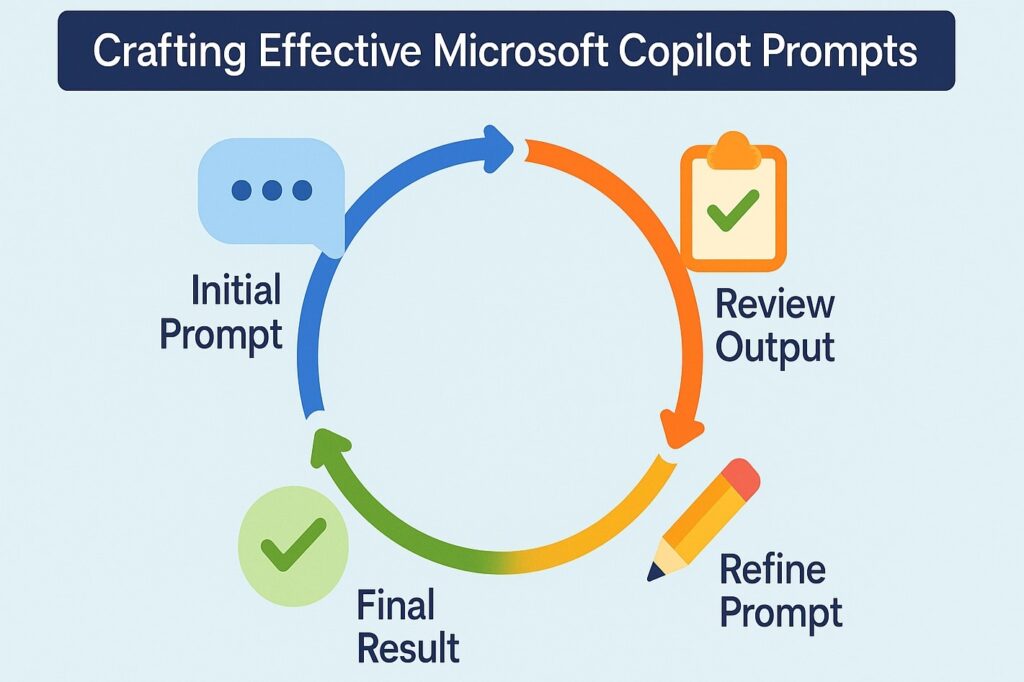
The assumption that a single Copilot Prompt can yield a perfect response is one of the most common misconceptions among users. In practice, high-quality outputs emerge from a cycle of iteration, feedback, and refinement. Copilot responds best when it is guided through a conversational process where each step builds upon the previous one. Professionals who treat prompting as an iterative dialogue rather than a one-time command consistently achieve superior outcomes.
Prompt chaining is the process of breaking down complex requests into smaller, manageable prompts that build toward a final output. For example, instead of asking Copilot to “write a presentation on quarterly financial performance,” you could start with “summarize the financial highlights of Q2,” then follow with “convert the summary into three slides focusing on key growth areas,” and finally “rewrite the slides for a senior executive audience.” This approach maintains clarity at each stage while ensuring the AI model refines its understanding with every iteration.
Professionals can adopt a simple three-step loop to refine Copilot Prompts effectively:
Each cycle moves you closer to the desired outcome. Over time, this iterative method becomes second nature, reducing the total time spent revising AI outputs.
Refinement often involves follow-up prompts that provide incremental direction. Some useful examples include:
These iterative instructions help shape the content exactly as intended while maintaining control over the AI’s creativity and precision.
Even with well-designed prompts, Copilot may occasionally produce irrelevant, incomplete, or confusing responses. Such moments should not be treated as failures, but rather as signals indicating that the AI requires more precise input. Correcting these issues efficiently is a critical professional skill in advanced prompt design.
If Copilot delivers off-target content, restate the main objective using explicit verbs to ensure accuracy. For instance, rather than “tell me about the product launch,” specify “summarize the Q4 product launch strategy in 200 words, focusing on marketing objectives.” This restatement reanchors the model to a defined task and output type.
A frequent cause of error is the lack of sufficient context. Copilot can only generate accurate outputs when it has access to the necessary information or direction. Provide additional background, mention relevant documents, or include short examples of what you expect. If your prompt references an internal report, explicitly name it or summarize its key points so Copilot has grounding cues.
Complex multi-part prompts often confuse the model. When the Copilot struggles, break the request into smaller, sequential instructions. A step-by-step approach enables the system to process information logically and minimize errors. Once individual outputs meet your standard, you can merge them into a cohesive result.
Copilot’s contextual understanding relies on Microsoft Graph connections to files, calendars, and messages. If your prompt depends on data that Copilot cannot access, it may attempt to generate plausible but incorrect information. Always confirm that the AI has permission to retrieve the necessary content or provide summarized data directly in the prompt.
| Problem | Likely Cause | How to Fix |
|---|---|---|
| Generic output | Vague task or missing context | Add specific verbs, audience, and expected format |
| Irrelevant content | Ambiguous references | Include document titles or project names |
| Repetitive phrasing | Overly long prompts | Break into smaller steps or shorten sentences |
| Incorrect data | Restricted access | Check file or directory permissions |
| Unstructured output | Missing constraints | Add formatting or output style instructions |
When viewed systematically, these errors are not setbacks but opportunities to refine both prompt and process.
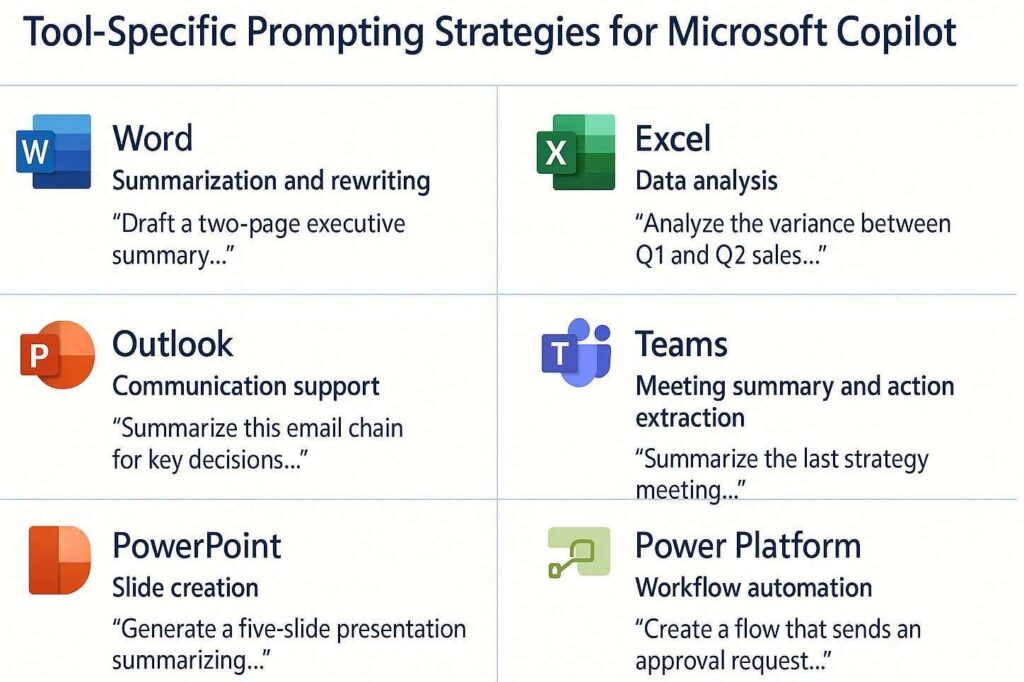
Every Microsoft 365 application hosts a unique instance of Copilot with its own strengths and limitations. Understanding these distinctions enables professionals to craft targeted Copilot Prompts that maximize accuracy and efficiency.
Copilot in Word excels at content creation, summarization, and rewriting. Effective prompts clearly define the document’s purpose and its intended audience. For example:
When refining Word outputs, request adjustments such as tone, format, or structure. Word Copilot is highly responsive to iterative improvements, such as “make it more concise” or “add a closing paragraph reinforcing key benefits.”
In Excel, Copilot supports analytical reasoning rather than free-form writing. It responds best to prompts that reference specific data ranges or objectives. Examples include:
Copilot’s access to structured datasets means clarity is critical. Define which columns or sheets the AI should use and specify whether the output should be visual, textual, or formula-based.
Copilot in Outlook functions as an intelligent communication assistant. It can summarize long email threads, compose responses, or generate follow-up tasks. Prompts such as “Summarize this email chain for key decisions and next steps” or “Draft a professional reply accepting the meeting and proposing two alternate time slots” demonstrate how precision yields relevance. Including tone requirements like “friendly but professional” ensures an appropriate messaging style.
Within Microsoft Teams, Copilot processes conversational context to summarize discussions, extract action items, or prepare updates. Prompts should specify the source (a meeting, chat, or channel) and the desired structure. For example: “Summarize the last strategy meeting in bullet points with assigned owners and deadlines.” This clarity enables Copilot to produce output that aligns with operational workflows.
In PowerPoint, Copilot converts text-based input into visually appealing slides. Prompts should define structure and storytelling flow. For instance, “Generate a five-slide presentation summarizing our sustainability initiative, including one chart and one slide on next steps.” Including tone cues such as “for investor presentation” helps Copilot tailor its visuals accordingly.
For Power Automate and Power Apps, Copilot translates natural language into logical components and workflows. Effective prompts use conditional language, such as “Create a flow that sends an approval request when a new document is uploaded to SharePoint.” Clear sequencing and step definitions prevent misinterpretation.
Copilot’s greatest strength lies in its integration with enterprise data through Microsoft Graph. To leverage this capability, prompts must be context-aware, grounded in real content, and framed around internal taxonomies.
When Copilot processes a prompt, it searches connected sources for relevant data points, such as emails, files, meetings, or SharePoint lists. For maximum precision, users should reference these sources explicitly. A well-crafted Copilot Prompt might say, “Use the latest project update file in the Operations folder to summarize budget changes.” This directs Copilot toward an existing knowledge base, ensuring factual grounding.
Referencing enterprise content within prompts allows Copilot to generate contextually rich outputs. Professionals can cite document names, folder paths, or data sources: “Summarize the ‘Q3 Strategy Plan.docx’ and extract five KPIs for executive reporting.” Adding these references increases Copilot’s ability to retrieve accurate insights.
SharePoint metadata, such as content type or tags, can be embedded into prompts to further improve relevance. For instance, “Create a summary of all policy documents tagged ‘Compliance’ uploaded in the last month.” By aligning prompt language with the enterprise taxonomy, users guide Copilot to accurately locate and filter information.
Human resources professionals use Copilot Prompts to simplify documentation and communication. Common examples include drafting onboarding materials, summarizing employee surveys, or creating policy explanations. For example, “Generate a 500-word internal policy brief explaining hybrid work guidelines in a clear and engaging tone.”
Sales teams rely on Copilot to synthesize meeting notes, create proposal drafts, and generate personalized messages. Marketing professionals can prompt Copilot to “Develop a 3-email nurture sequence bringing our new analytics feature to IT managers” or “Rewrite this campaign brief for executive approval in a concise format.”
In finance, prompts can automate commentary on reports or support forecasting. “Summarize this month’s variance analysis focusing on the top three cost drivers,” or “Generate a one-page overview comparing this quarter’s margins to last year,” are clear, context-driven examples.
IT professionals use Copilot to create user documentation, troubleshoot summaries, or ticket updates. “Generate a FAQ from these support tickets grouped by issue type” or “Draft a summary of last week’s outage report for the internal newsletter” are practical Copilot Prompts for this function.
Mastery of prompting cannot remain isolated to a few skilled users. Organizations that treat prompt fluency as a core digital competency will experience far higher returns from Copilot deployment.
Documenting effective prompts as templates enables consistent quality across teams. A well-maintained prompt library should categorize prompts by department, use case, and expected outcome. Version control and metadata tagging can further improve accessibility and adaptability.
Establishing peer-review sessions or prompt-sharing communities encourages experimentation and continuous improvement. These efforts align naturally with a broader digital adoption strategy focused on behavioral change, helping teams internalize Copilot usage best practices. Teams can hold regular workshops where members present prompts that save time or improve accuracy, helping others learn through applied practice.
Embedding contextual help within enterprise applications allows employees to refine prompts without leaving their workflow. This ensures that learning occurs naturally and scales across departments, building collective proficiency.

Copilot has redefined how professionals interact with digital tools. The difference between ordinary and exceptional outcomes lies in the precision of the prompts that drive them. Strong Copilot Prompts are not the result of luck or intuition but of structure, iteration, and intentional design. By applying frameworks, refining patterns, and embedding enterprise context, organizations can transform Copilot from a novelty into a strategic asset.
Prompting mastery begins with individuals but scales through shared practices and systems. The ability to communicate effectively with AI is becoming the defining skill of digital professionals. As businesses continue to integrate AI into every workflow, those who invest in prompt fluency today will shape the productivity frontier of tomorrow.
At VisualSP, we’ve spent years helping organizations succeed with digital adoption, transformation, and now, enterprise AI. The insights shared in this guide to effective Copilot Prompts align directly with what we see every day in the field: even the most powerful AI tools, like Microsoft Copilot, only deliver meaningful outcomes when users know how to communicate with them clearly and confidently.
That’s exactly where we come in. VisualSP provides in-context support layered directly into your web enterprise applications. Our platform makes it easy for users to access the guidance they need, whether that’s through walkthroughs, inline help, micro-videos, or tooltips, without ever leaving the app they’re working in. When employees are learning how to prompt Copilot effectively, having that just-in-time support in the same workflow makes all the difference.
One of the things we’re most excited about is our AI-powered content creation. With just a few inputs, teams can instantly generate onboarding guides, walkthroughs, or support messages tailored to their systems. We also offer pre-built Copilot prompt templates designed for real enterprise workflows, helping organizations roll out AI capabilities faster and more consistently.
Our AI assistant delivers real-time help based on user context. It doesn’t just tell users what Copilot is; it helps them use it effectively, providing prompt suggestions and guidance aligned with business goals. Whether you’re launching Copilot organization-wide or building a library of prompt best practices, VisualSP simplifies the process and accelerates success.
If your organization is ready to scale AI adoption with confidence and drive real results from tools like Microsoft Copilot, we invite you to explore VisualSP Copilot Catalyst.
Fuel Employee Success

VisualSP accelerates digital adoption, digital transformation & user training.

Stop Pissing Off Your Software Users! There's a Better Way...
VisualSP makes in-app guidance simple.

